Organizations, locations, and access
Viam organizes your machines into a three-level hierarchy: organizations contain locations, and locations contain machines. This hierarchy is also the foundation for access control. You grant permissions at any level, and they apply to everything within that level.
Organization, location, and machine hierarchy
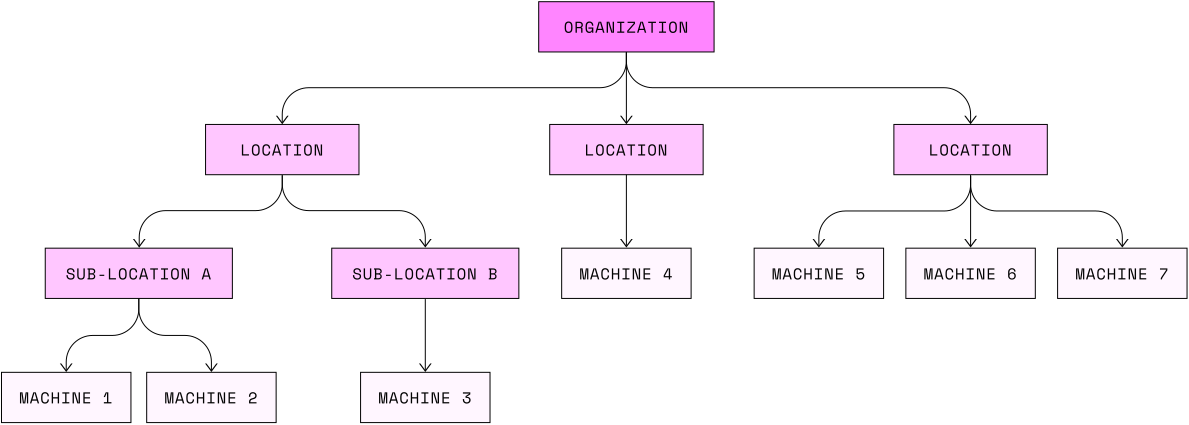
Organizations are the top-level grouping. An organization typically represents a company or team. Each organization has its own members, API keys, billing, and data region.
Locations group machines within an organization. A location can represent a physical site, a project, or any logical grouping that makes sense for your fleet. You can nest locations up to three levels deep to create sub-groupings.
Machines are individual devices running viam-server.
Each machine belongs to exactly one location.
How the hierarchy affects access
When you grant a user or API key access at a given level, the permissions apply to everything below it:
- Organization-level access grants access to all locations and machines in the organization.
- Location-level access grants access to all machines in that location and its sub-locations.
- Machine-level access grants access to only that specific machine.
This means you can use the hierarchy to approximate team boundaries even without an explicit team or group feature. For example, create a “Production” location and a “Testing” location, then grant field operators access only to “Production.”
For details on what each role can do, see Permissions.
Choose your structure
Before connecting devices, decide how you want to group your machines:
- By physical site: one location per office, warehouse, or deployment site.
- By project or environment: locations for “Production,” “Staging,” and “Development.”
- By customer: if you deploy machines to customers, one location per customer lets you share access with that customer’s organization.
You can combine these approaches using nested locations. For example, a “Chicago warehouse” location could contain “Floor 1” and “Floor 2” sub-locations.
Create and manage organizations
Create an organization
- Log into the Viam app.
- Click the organization dropdown in the top navigation bar and click the + button.
- Name the organization.
- From the Data region dropdown, choose where Viam should store your data. See Choose data region.
- Click Create.
Rename an organization
You must be an organization owner.
- Click the organization name in the top navigation bar and click Settings.
- In the Details section, change the name and click Rename.
Caution
If your organization owns modules or packages in the Viam Registry, the namespace changes automatically. You must update any configurations that reference your modules using the old namespace.
Delete an organization
- Delete all locations in the organization.
- Click the organization name in the top navigation bar and click Settings.
- At the bottom of the page, click Delete organization.
Create and manage locations
Create a location
- Click the organization name in the top navigation bar and click Locations.
A default location called
First Locationis created automatically for new organizations. Use the … menu to rename it. - To create additional locations, click + Add location.
Create sub-locations
- Create a new location using + Add location.
- On the new location’s page, click the … menu and click Move.
- Choose a parent location.
You can nest locations up to three levels deep.
Move a machine to a different location
Organization owners and location owners can move machines between locations.
- Navigate to your machine’s page.
- Click the … button in the upper-right corner.
- Select Move to a new location.
- Choose the destination location and confirm.
Important
Moving a machine changes its network address and its access permissions. Users with access to the old location lose access, and users with access to the new location gain access. Historical data stays associated with the original location.
Share a location with another organization
To give another organization access to a location, see Share a location with an organization.
Your account
Create an account and log in
Navigate to app.viam.com. Click Sign Up to create an account using Google, GitHub, Apple, or email. If you already have an account, click Log In.
To reset a forgotten password, click Forgot password on the login page.
Note
Accounts created from different authentication providers (for example, Google and email) are separate accounts, even if they use the same email address.
Sign out
Click your profile icon in the upper-right corner and click Sign out.
Delete your account
Contact contact@viam.com to delete your account. Account deletion may result in destruction of associated content.
CLI authentication
You can authenticate with the Viam CLI using either interactive login or an API key:
viam login
viam login api-key --key-id <key-id> --key <key>
To check who you are currently authenticated as:
viam whoami
If you work with multiple organizations or API keys, you can set up CLI profiles to switch between credentials:
viam profiles add --profile-name production --key-id <key-id> --key <key>
viam profiles list
You can also set default org and location for CLI commands:
viam defaults set-org --org-id <org-id>
viam defaults set-location --location-id <location-id>
For the full CLI reference, see CLI.
FAQ
Can I move a location to a different organization?
No. You can share a location with another organization, but the location stays in its original organization. Machines in a shared location continue to use the primary organization for data association, private ML models, and registry items.
Can I rename my organization after creation?
Yes, if you are an organization owner. See Rename an organization.
Can I move a machine across organizations?
No. You can only move a machine to a different location within the same organization. To transfer a machine to another organization, you would need to set up a new machine in the target organization and reconfigure it.
Next steps
- Control access to your machines by granting and revoking permissions.
- Manage API keys for programmatic and CLI access.
- Review the permissions reference to understand what each role can do.
Was this page helpful?
Glad to hear it! If you have any other feedback please let us know:
We're sorry about that. To help us improve, please tell us what we can do better:
Thank you!